Settings
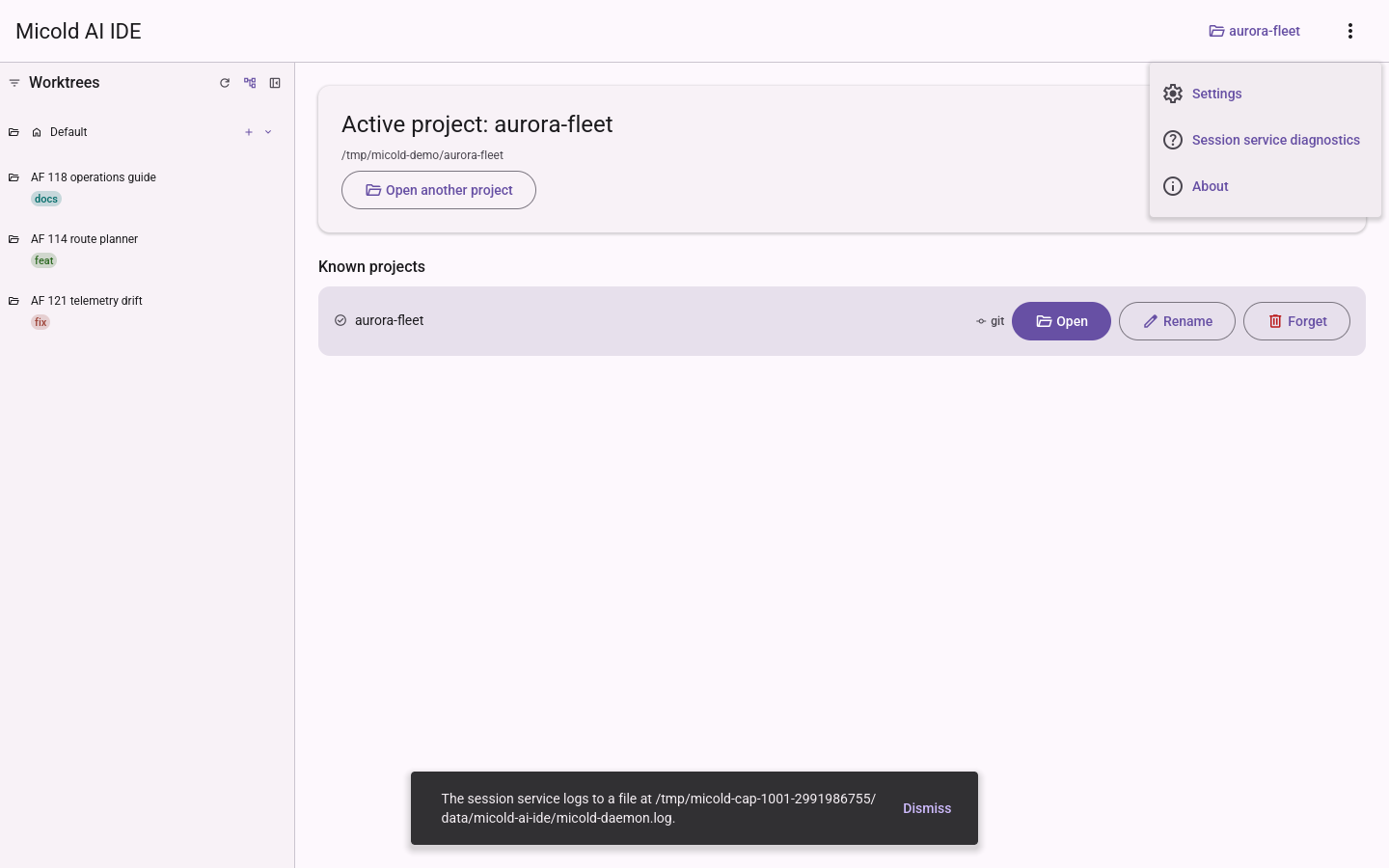
Open Settings from the overflow menu (the three-dots button) in the top toolbar. It fills the main area, with a rail down the left listing five sections. The app bar and the connection strip stay where they are, so the way back out is always in view.
Collapse, at the bottom of the rail, slides the rail in to its icons and gives the width to the section. Collapsed, the same control is drawn as the show-sidebar icon, and pressing it slides the rail back out. Every section stays one press away while the rail is collapsed or moving, and a section with something to report keeps marking its row throughout: by its badge while there is room for it, and by a tinted icon when there is not.
Editing is one form across all five sections: switching sections never discards what you typed, and Save applies every section at once. If a value is rejected, Settings jumps to the section holding it and marks the field — press Cancel, or Esc, to leave without saving anything.
| Section | What it holds |
|---|---|
| Appearance | The theme |
| Terminal | The embedded terminal’s scrollback limit |
| Environment | Which AI CLI a session runs, whether Pi sessions report activity, whether AI sessions get the app’s tools, and the script sourced before it starts |
| Session service | Where sessions run, and what that service can reach |
| GitHub issues | Which worktree type an issue’s labels choose |
Everything you save lands in one file on this computer — see Where settings are stored for the path, and for what the app does when that file can’t be read.
Appearance
Theme — follow the system, or pin light or dark. Following the system switches with it while the app is running.
The app bar’s mode button cycles the same setting, for when you want it in one press.
Terminal
Scrollback lines controls how many lines of earlier output each session’s terminal keeps for scrolling back through (see Worktrees & sessions → Sizing, resize & scrollback).
- Default: 10,000 lines.
- Range: 100 – 1,000,000 lines. Values outside the range (or non-numeric input) are rejected with a message and not saved.
- The value is saved on your machine and restored the next time you open the app.
- A changed limit applies to sessions started after the change; already-running terminals keep their current buffer.
Environment
Default AI CLI
Which AI coding CLI a new session runs when you don’t choose one for it.
-
The choices are the CLIs you actually have installed where sessions run: on this computer, or in the container’s image when the session service runs in one. If only one is installed, that is the only option — and nothing else about starting a session changes for you.
-
“Installed” means a session would find it. A CLI is offered when it is on the
PATHa session starts with, and that includes what the environment a session starts in adds. So a CLI you installed through a version manager —piorcopilotfromnpm install -gunder mise or nvm, say — is offered as long as environment-include is on and your startup file sets that version manager up. This field answers for your home directory, because the default applies everywhere. Each sidebar row answers for its own project or worktree, so a CLI one project’s script adds is offered on that project’s rows even when it is not listed here. -
A note under the field names any CLI a session would not find, says why, and says what to change. It answers for your home directory, like the field itself. The reason is one of six, following the state of the environment a session starts in:
State What the note says What it tells you to do Source a script before each session is off Sessions get only the login PATHTurn it on if your startup file puts the CLI on the PATH, or install the CLI on the loginPATHIt is on and Script path is empty No script is sourced Set Script path, or install the CLI on the login PATHNo file exists at the script path The startup script was not found for your home directory Correct Script path The script exited with an error (this includes a path that exists but cannot be sourced) The startup script exited with an error for your home directory Fix the script The script ran past the timeout The startup script timed out for your home directory Fix the script, or raise Timeout The script was applied and the CLI is still not found The CLI was not found on the PATHsessions get for your home directory: the loginPATHplus what the script addsInstall the CLI, or make the script add its directory Only the last row means the CLI is not there. In the first five the note does not say the CLI is not installed, because no script was applied and the app cannot know. The note is complete by itself: it does not depend on the outcome line in the environment-include group, which reports the directory resolved most recently and may be about another project. Saving a change to these settings asks again, so the note and the list are up to date the next time you open Settings, with no restart. Nothing is said when every CLI is found, or before the session service has answered.
-
Default: Claude Code.
-
Changing it affects new sessions only. A session’s CLI is fixed when the session is created and never changes afterwards, so sessions you already have keep running the CLI they started on.
-
You can override it per session without touching this setting — see Worktrees & sessions → Choosing which AI CLI a session runs.
A CLI you installed is not offered? It is not on the PATH a session gets. Either keep
Source a script before each session on, with a script that sets up the version manager you
installed it with, or install the CLI somewhere on the PATH your login session already has (for
example with a symlink in ~/.local/bin). The app does not look anywhere else, because a session
would not either.
If your default names a CLI a session would not find, the app keeps it rather than quietly changing it. That is deliberate. A CLI can be missing for a moment — a startup file that failed or timed out, environment-include switched off, an upgrade in progress — and silently rewriting your preference would lose a choice you made without saying so. The setting stays as you left it, and when you start a session the app tells you what is missing and offers the CLIs that are available instead of substituting one.
Show activity for Pi sessions
On by default. Pi has no built-in way to tell another program whether it is working or waiting for you, so when you start a Pi session the app loads a small component of its own into that Pi process to report it. That is what drives the session’s working/idle badge.
What the component does, and all of what it does:
- It writes one line to a file the app watches each time Pi starts or finishes a turn, starts or finishes a tool, settles, or quits. Each line is the event’s name and a timestamp — nothing else.
- It never reads or transmits your conversation: no prompts, replies, file contents or tool arguments, and it makes no network connection.
- It is loaded only into Pi sessions this app starts. It is not installed into Pi’s own extension
folders, so running
piyourself outside the app does not load it.
Pi gives every extension it loads full permissions on your system — the same as Pi itself.
The component uses none of that beyond appending to its one file, but if you would rather Pi load
nothing from this app, turn Show activity for Pi sessions off. Sessions started after that run
plain pi, and their badge reads unknown. That is the expected result of turning it off, not a
fault: the session works exactly as before, the app just has no way to see whether Pi is busy.
It is one setting for the whole app — there is no per-project or per-session copy — and it applies to Pi sessions started after you save. Claude Code and Copilot sessions are unaffected either way.
Let AI sessions manage worktrees and sessions
On by default. Claude Code and GitHub Copilot sessions are connected to the app’s own tool server, so the assistant in a session can see the project’s worktrees, branches and sessions the way the sidebar shows them. Tools for the AI in your sessions lists what they can do.
Turn it off and sessions started after you save get no connection: they start exactly as they
did before this feature, and the session service writes one line to its log for each, saying
no tool server: disabled in settings. Sessions already running keep the connection they started
with until they stop; restart one to drop it. Turning it back on connects the next session again.
It is one setting for the whole app, kept by the session service beside the default AI CLI, so every open window shows the same value.
Let agents read and type into other sessions
Whether the assistant in one session may read another session’s terminal and type into it, with the
read_session_output and send_session_input tools
(Tools for the AI in your sessions). It
only ever reaches sessions of the same project.
| Value | What it means |
|---|---|
| Auto (the default) | An assistant reads and types into other sessions without asking you |
| Confirm each send | Reading needs no approval. Each message an assistant wants to type waits for you to allow it in an app window; declined, unanswered for 60 seconds, or with no window open, it is not typed |
| Off | Both are refused |
A change applies to the next request, also from sessions that are already running: you do not need to restart anything. It is a separate setting from Let AI sessions manage worktrees and sessions above. With that one off, new sessions have no tools at all, so this one has nothing to govern for them.
It is one setting for the whole app, kept by the session service, so every open window shows the
same value. In the settings file it is cross_session_access, with the value auto,
confirm_each_send or off. If the file holds anything else there, for example after a mistyped
edit, the option reads as Off and the rest of your settings are kept.
The environment a session starts in
By default, every session’s AI CLI process and regular-terminal process automatically pick up your normal shell environment — PATH additions from version managers (nvm, pyenv, rbenv), exported API keys, proxy settings, and anything else your shell’s startup file sets. This is done by actually running that startup file in a real, disposable shell process and capturing what it changes — not by parsing its text — so conditionals, sourced sub-files, and version-manager init blocks all resolve correctly.
- Default: on, sourcing
~/.bashrcon Linux/macOS (via bash) or your PowerShell profile on Windows. - Both the AI CLI process and the regular-terminal process for a session see the identical set of resolved variables.
- Resolution runs per project directory, not once for the whole app: if your startup file uses
a version manager (mise, asdf, nvm, pyenv, rbenv, …) whose
PATHadditions depend on which project you’re in, each project’s own directory-specific additions are picked up correctly — the same way they would be in a regular terminal opened in that project.
This section holds three fields:
- Source a script before each session — turn environment-include off entirely (no script is sourced) or back on. Turning it off keeps the path, so re-enabling it doesn’t mean typing it again.
- Script path: the file to source. Any path is accepted and never rejected at save time. Each time you open Settings, the path is checked (without running the script), and while environment include is off, a path that names no readable file is reported below the fields. A save that leaves such a path is saved as usual and then posts a notification naming it, whether the feature is on or off — see If the script path names no file.
- Timeout (seconds): how long sourcing may run before being treated as hung. Default: 10 seconds. Range: 1 – 60 seconds; out-of-range or non-numeric input is rejected with a message and not saved (same as the scrollback field).
A saved change takes effect on the next session or terminal launch — no app restart needed — even while a session in the same project is still starting under the old settings.
Saving a change to any of these three fields also refreshes which AI CLIs every sidebar row offers,
with no restart. The script is what puts a project-local CLI on a directory’s PATH, so each row
is asked again; until its new answer arrives, a row keeps offering what it offered before. A change
saved in another window refreshes the rows in this one too. Saving without changing these fields
asks nothing.
Persistence: only the enabled flag, script path, and timeout are ever saved to disk. The variables the script resolves — and any diagnostic text captured while troubleshooting a failure — are held in memory for the running app only and are never written to your settings file, since they may include secrets (e.g. exported API keys).
If the script path names no file
Each time you open Settings, the stored script path is checked in the background: the page opens at once, and the result appears below the fields a moment later. The check only looks at the file; it never runs or sources it, and it is not saved anywhere. Opening a session or restarting a terminal does no check at all, so a bad path never slows a launch.
Whether Source a script before each session is on or off, the page tells you when the path does not name a readable file, in the same words either way:
- Script not found:
<path>— nothing exists at that path. - Not a readable file:
<path>— something is there, but it is a directory or a file you are not allowed to read.
Either line is followed by a note that says what that means in the current state. While environment include is off: no script is sourced now, and turning it on will not source one until the path names a readable file. While it is on: the script cannot be sourced until the path names a readable file. Switching the feature on or off changes only this note, never the line about the path.
A few paths are reported differently, in either state:
- A path starting with
~is taken literally:~is not expanded to your home directory, so~/.bashrcis reported as not found, with a note saying to use a full path. - A relative path (such as
env.shorscripts/env.sh) is not checked, because whether it is found depends on each session’s directory. The page says so instead. - If the check has no answer within 2 seconds — for example, the path is on a network drive that is not responding — the page says Couldn’t check the script path rather than waiting.
- A blank path, or a path that names a readable file, shows nothing about the path.
If you create the missing file while environment include is on, the page says The last attempt could not find the script, followed by a note that the file exists now and that saving Settings or restarting a session will source it. Opening Settings never sources the script by itself.
If you save Settings in another window while this one shows Settings, this page checks the newly stored path too, so both windows say the same thing about it.
When you save
Saving always goes through: a missing script never stops the other settings from being saved. Because Save closes Settings, every save that leaves a path naming no readable file then posts a notification naming it — with Source a script before each session on or off, and even if the save did not change the path:
- The environment-include script was not found:
<path>— nothing exists at that path. For a path starting with~, it adds (~ is not expanded; use a full path). - The environment-include script is not a readable file:
<path>— something is there, but it is a directory or a file you are not allowed to read.
A blank path, a relative path, a readable file, or a check with no answer within 2 seconds posts no notification. Nothing else reports a missing script: opening a session does not, and neither does the main window.
To fix it, edit Script path to the full path of a readable file, or clear it, and save.
If the script fails
A missing, broken, or hanging script never blocks or fails opening a session — the session opens normally with whatever environment is otherwise available. The most recent attempt’s outcome is shown at the bottom of this section whenever it didn’t succeed — since resolution runs per project directory, this reflects whichever directory was most recently (re-)resolved (typically your active project, or the one you just restarted a session in), not necessarily every project you have open:
- Script not found:
<path>— the configured path doesn’t exist. It is the same line the path check shows, and it appears once, not twice. It reads the same with the feature on or off (see If the script path names no file), so switching the feature off does not hide it. - Exited with an error — the script ran but failed; the script’s own output is shown verbatim underneath, to help you see what went wrong.
- Timed out — sourcing didn’t finish within the configured timeout and was abandoned.
To recover once you’ve fixed the script: use the existing restart control on the affected session’s terminal (shown whenever that session’s process isn’t running) — this re-sources the script fresh and clears the failure note, without needing to restart the whole app. Saving Settings (even without changing any value) also triggers a fresh re-source.
Session service
Everything about the process that actually runs your sessions is here, because it is one decision: sharing your SSH agent means nothing when the service is a plain process on this computer, and means a great deal when it is a container.
Where sessions run — directly on this computer (the default), or inside a container that sees only your registered projects. Takes effect the next time the application starts. See Running the session service in a container for what changes, what it can and cannot reach, and how to work offline.
The container settings stay visible and editable whichever placement you pick, and are kept if you switch back — configuring the container and then trying the host process first doesn’t mean setting it up again.
Container
- Container runtime — Docker (the default) or Podman.
- Image source — pull from a registry, load from a local archive (the fully offline path), or build from this checkout.
- Image reference — a digest or an exact tag. A moving tag like
:latestcan’t be named in a bug report, so the app will tell you when you’re on one. Sessions run in this image, so it has to provide every AI CLI you want to use. The image this app publishes, and one built from this checkout, ships Claude Code, GitHub Copilot and Pi Coding Agent. If the running image lacks one, a note under the field names it. That note describes the image the service is running now, not an unsaved or not-yet-started reference: a new image is used from the next time the service starts. - Image file — the archive to load, when the image comes from a file.
Credentials
The container starts with none of your credentials, and upgrading the app never opts you in. Each share is separate, and only what you tick is passed in:
- Git configuration —
~/.gitconfig, read-only: your commit identity. - SSH agent — the agent’s socket. The socket, never the keys themselves.
- Git credentials — the git credential helper’s store.
- AI CLI sign-in — the AI CLI’s own authentication material.
While any of these is on, the section lists exactly which ones by name, and the rail marks Session service with a Sharing badge — so you can tell at a glance, from any section, that something is being shared.
Sessions
-
Keep the service running when I’m signed out or away — off by default. It answers one question, and changes two things.
With it off (the default), the service stops when you sign out, and it also stops itself after 30 continuous minutes with nothing connected. Reopening the application starts a fresh one; a session that was running comes back resumable rather than lost. See when the service stops itself.
With it on, and only in a container: the sandbox is created with a restart policy the runtime honours on Linux, macOS and Windows alike, and the idle stop does not apply to it — a service you asked to keep running is not one to stop for being unused. Because both are fixed when the container is created, changing this marks the running sandbox as out of date and takes effect the next time it starts. See keeping the sandbox running.
A service running directly on this computer cannot honour it on any platform — the app is the only thing that starts one, and nothing it starts outlives the session it was started from. The control says so rather than accepting a choice it cannot keep. Your sessions are still kept and come back resumable; only the running processes inside them stop.
GitHub issues
When you create a worktree from a GitHub issue, the issue’s labels choose its Type (see The issue’s labels choose the type). This section is that label-to-type mapping: one list, applied to every project.
Each row is one entry: a Label, the Type it selects, and buttons to move the entry up or down, or to delete it. Order matters: when an issue carries several mapped labels, the entry nearest the top wins, so move an entry up to make it win.
- Add entry adds a row at the bottom with an empty label and the type
feat. - Restore defaults puts back the three default entries —
bug→ fix,enhancement→ feat,documentation→ docs — replacing whatever the list holds. - With no entries, the section says so, and picking an issue leaves the type for you to choose.
Several labels may select the same type. A label may appear only once, though, and labels are
compared ignoring letter case and surrounding spaces, so Bug repeats bug. Save refuses a
blank label or a repeated one, jumps to this section, and marks the row; nothing is saved until you
fix or delete it.
A saved change applies to the next issue you pick, in every open project, without a restart. It is
kept in settings.json with your other settings.
Where settings are stored
Everything on this page is saved to a single file on your own computer — nothing is sent anywhere:
| Platform | File |
|---|---|
| Linux | ~/.local/share/micold-ai-ide/settings.json (or under $XDG_DATA_HOME) |
| macOS | ~/Library/Application Support/micold-ai-ide/settings.json |
| Windows | %APPDATA%\micold-ai-ide\data\settings.json |
The file survives restarts and package upgrades. You can read it, and you can copy it to another machine, but you don’t have to edit it by hand — Settings writes every value it holds.
If your settings can’t be read
Two things can go wrong with that file, and the app tells you about both rather than quietly starting over. Neither one throws your settings away.
“Your settings could not be read, so defaults are in use.” — shown when the app starts. The file was there but the app couldn’t make sense of it, so it opened with the defaults rather than refusing to start. If the file was unreadable because its contents were damaged, the message also names where the original was kept:
Your settings could not be read, so defaults are in use. The unreadable file was kept as
…/settings.json.bak.
That .bak file is the damaged original, untouched. Open it in any text editor to read the values
back out — your container image reference, your startup script path, whatever you’d rather not type
again — then set them in Settings and press Save. Once you save, the app writes a fresh
settings.json and the message stops appearing. If you don’t need anything out of the .bak,
you can delete it.
“Couldn’t save your settings: the settings file could not be read, and saving now would replace it with defaults.” — shown when you press Save. Here the file is still on disk and still intact; the app just couldn’t read it this time, usually because the file’s permissions or its folder changed underneath it. Saving would have written the defaults over a perfectly good file, so the save is refused instead. Your change is not lost — it’s still in the form, and the values on disk are still the ones you set earlier.
To clear it: check that the file listed above exists and that your user account can read and write it, then press Save again. Every settings write — successful or refused — is recorded in the log, so a save you can’t explain has a line to point at (see Finding the logs and recent errors).